You have just downloaded StreamVision IPTV and want to add your content? Whether you use a simple M3U URL or the Xtream Codes API, this guide explains everything from A to Z. Reminder: StreamVision is a technical player and does not provide any content by default.
1. Adding a Playlist via M3U URL
The M3U format is the universal standard for IPTV. it comes as a link (URL) often starting with http://.
1 Open the application and click on the "+" icon or "Add a playlist".
2 Select the "M3U Link" option.
3 Paste the full URL provided by your legal subscription or service.
4 Give your list a name (e.g., "My Living Room TV") and confirm.
StreamVision will then analyze the link, download the channel list, and fetch logos automatically. The Cinema interface will classify your channels by groups (Sports, Entertainment, etc.).
2. Configuring Xtream Codes API
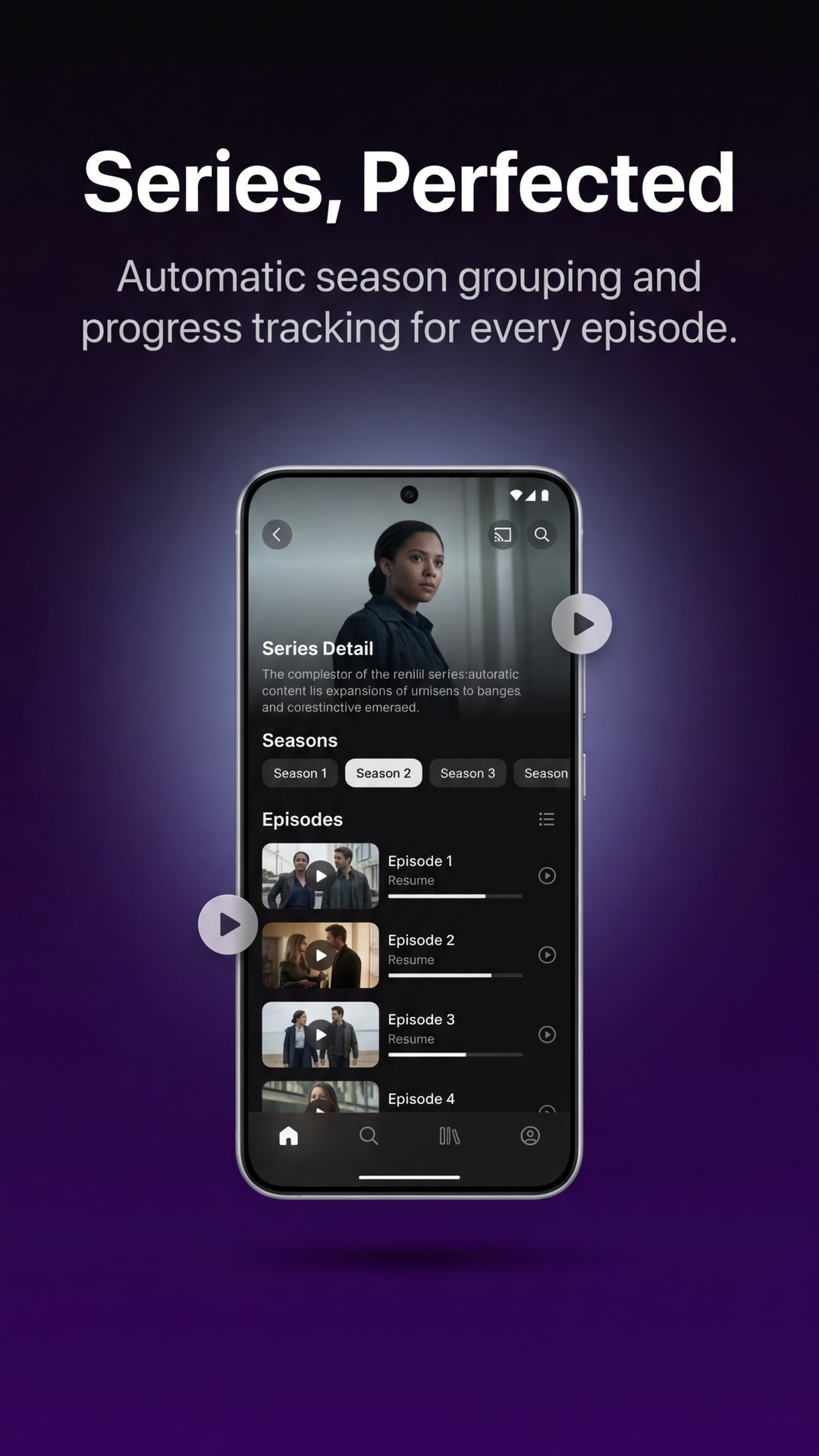
The Xtream Codes API is recommended if you have a lot of VOD content (Movies and Series), as it allows for much faster and smoother navigation.
1 Choose "Xtream Codes API" from the add menu.
2 Enter the Server URL (including the port, e.g., :8080).
3 Enter your Username and Password.
4 Click "Connect".
The major advantage of Xtream Codes on StreamVision is real-time synchronization: if your provider adds a new movie, it will appear automatically without you needing to refresh the list.
3. Expert Tips for Smooth Streaming
To avoid buffering or lag, here are our expert recommendations:
- Use PiP Mode: Enable Picture-in-Picture to keep watching your show while using other apps.
- AirPlay: If you have an Apple TV, use the native AirPlay button in StreamVision for optimal image quality on the big screen.
- Parental Lock: You can hide certain groups of channels directly in the playlist settings.
Questions? Problems?
StreamVision is 100% free. If you enjoy the app, leave us a rating on the App Store!